
10 Ways on How to Free Up RAM
1. Restart Your PC
This is a tip you’re probably familiar with, but it’s popular for a reason.
Restarting your PC will also clear memory and reset all running programs. While this obviously won’t increase your total RAM, it will clean up processes running in the background that could be eating up RAM.
You should restart your computer regularly to keep it from getting bogged down, especially if you use it all the time.
2. Check RAM Usage
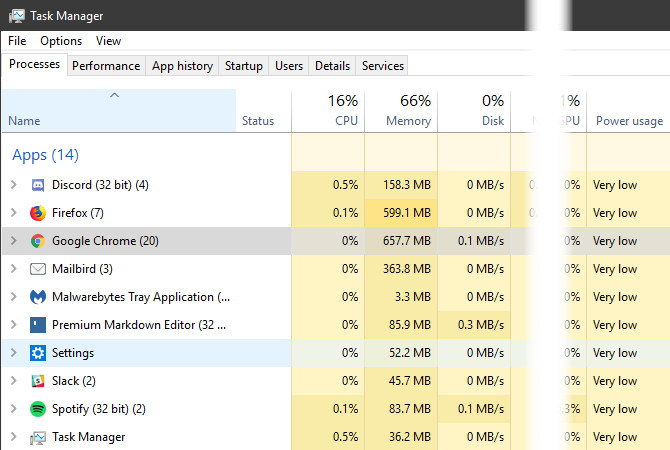
You don’t have to guess what’s using your RAM; Windows provides tools to show you. To get started, open the Task Manager by searching for it in the Start Menu, or use the Ctrl + Shift + Esc shortcut.
Click More details to expand to the full utility if needed. Then on the Processes tab, click the Memory header to sort from most to least RAM usage. Keep the apps you see here in mind, as we’ll discuss more on them later.
For more information, switch to the Performance tab. On the Memory section, you’ll see a chart of your RAM usage over time. Click Open Resource Monitor at the bottom and you can get more information.
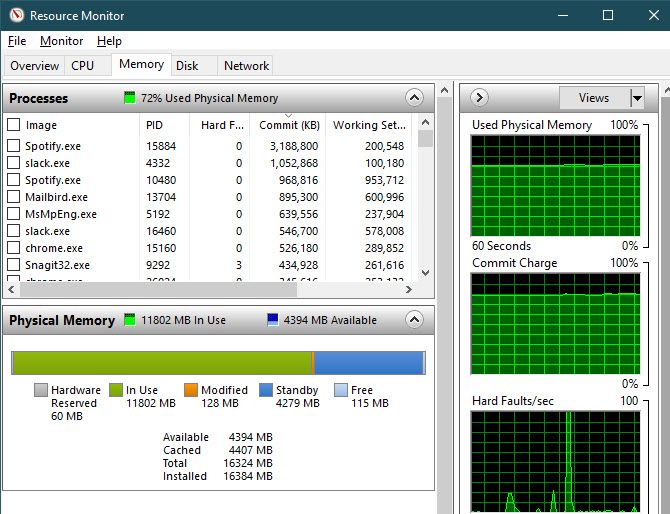
The chart at the bottom will show you how much RAM you have free. Sort by Commit (KB) on the top list to see which programs use the most RAM. If you suspect you have a deep problem based on what you see here, see the complete guide to troubleshooting memory leaks.
3. Uninstall or Disable Software
Now that you’ve seen what apps use the most RAM on your system, think about whether you really use them.
Apps you haven’t opened in months are just wasting resources on your computer, so you should remove them. Do so by navigating to Settings > Apps and clicking Uninstall on any app you want to remove.
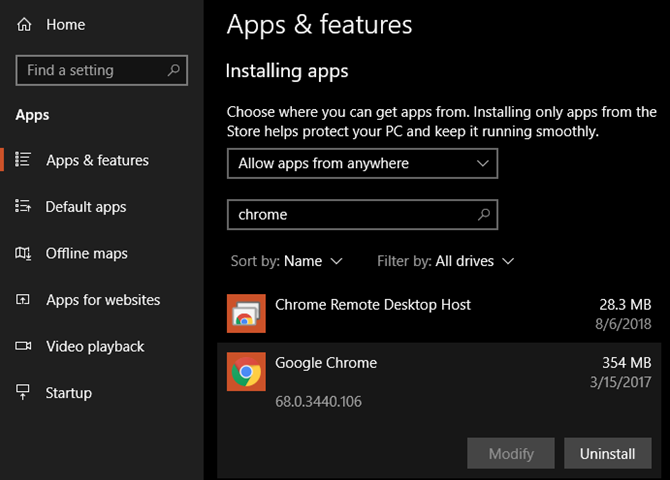
If you don’t want to uninstall an app because you use it sometimes, you can instead prevent it from running at startup. Many apps set themselves to automatically run every time you log in, which is inefficient if you rarely use them.
Take a look at our guide to startup programs for help.
4. Use Lighter Apps and Manage Programs
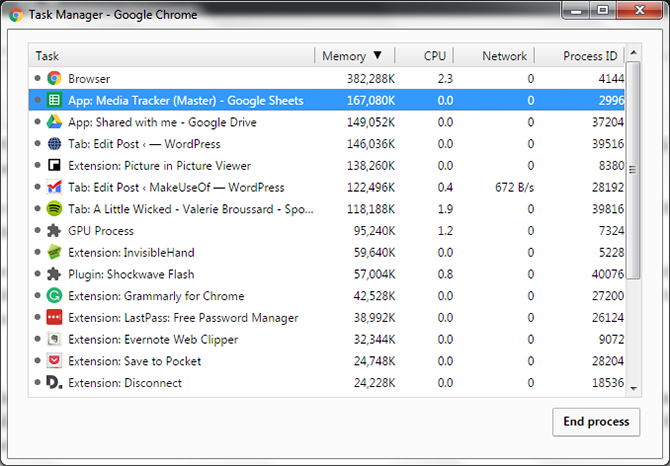
What if you really need to cut down on RAM usage, but the apps hogging RAM are necessary to your workflow? You can work with this in two ways.
First, try using lighter app alternatives when you can. If your computer struggles when you have Photoshop open, try using a smaller app like Paint.NET for minor edits. Only use Photoshop when you’re fully dedicated to working on a project.
Second, pay closer attention to the programs you have open. Close any software that you’re not actively working with. Bookmark open browser tabs that you want to read later, then close them to free up RAM. Keeping a tighter leash on what’s open will help free up RAM.
Google Chrome is in its own category here, as it’s notorious for gobbling RAM. See how to control Chrome’s memory usage for tips.
5. Scan for Malware
It’s worth checking for malware on your PC. Rogue software stealing resources will obviously suck up your available RAM.
We recommend running a scan with Malwarebytes. Hopefully it won’t find anything, but at least you can rule out the possibility.
6. Adjust Virtual Memory
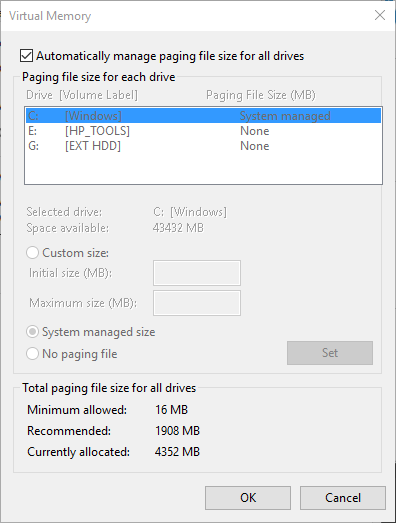
We mentioned the paging file earlier. If you see error messages that your system is low on virtual memory, you can increase this and hopefully keep performance stable.
To do so, search for the Control Panel on the Start Menu to open it. Switch the Category view in the top-right to Small icons (if needed) and choose System. On the left side, click Advanced system settings, which will open a new window.
Here, on the Advanced tab, click Settings under Performance. Switch to the Advanced tab once again and click the Change button.
Now you’ll see the paging file size for your main drive. In most cases, you can leave the Automatically manage box checked and let Windows take care of it. However, if you’re running low on virtual memory, you may need to uncheck this and set the Initial size and Maximum size to higher values.
7. Try ReadyBoost
If your computer still has an older mechanical hard disk drive (HDD) in it, you can try a lesser-known Windows feature called ReadyBoost to increase RAM. This allows you to plug in a flash drive or SD card that Windows effectively treats as extra RAM.
While it sounds great, this feature offers limited use today. If your computer has an SSD, ReadyBoost won’t do anything. This is because an SSD is faster than a flash drive.
Plus, since computers have more RAM installed by default now, you won’t see as much gain from ReadyBoost as you would on an anemic system from a decade ago. The “pretend RAM” from ReadyBoost doesn’t offer the same performance gains as actually adding more RAM.
8. Install More RAM
If you’re really low on RAM or want to run more programs at once, there’s really no way around it: you need to add some more RAM to your machine. While it’s not cheap, adding RAM will grant much-improved performance if your computer hasn’t had much until now.
On a desktop, this is a pretty simple upgrade. But due to the confined space on a laptop, it may be difficult or even impossible. You’ll also need to make sure you buy RAM that’s compatible with your system. So ask yourself some important questions before making any upgrade, and decide how much RAM you need.
Comments
Post a Comment