
First: Try Using This Tip to Recall Your Password
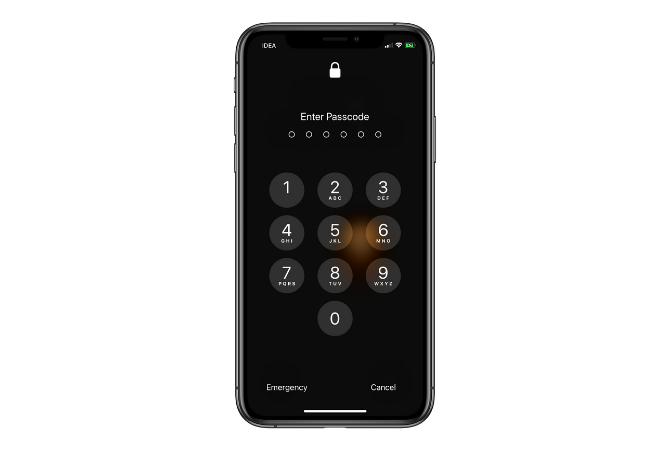
It might sound obvious, but before we dive into those methods, try recalling your passcode with an important tip in mind. It can save you from the hassle of having to explore other ways to remove your passcode.
It’s a common misconception that the iPhone only uses four-digit passcodes. It make sense that you might not know this, as the option is buried inside the Settings app. As it turns out, you can also set a custom-length numeric code or even a full alpha-numeric password like you’d use on a website.
Thus, it’s possible that you might have set a custom numeric or alphanumeric passcode, but are only trying to recall potential four-digit numbers. Try recalling your passcode with this increased scope of digits. Be careful though, as entering the wrong passcode six times in a row disables your iPhone.
If that doesn’t seem to work or your iPhone or iPad is disabled already, no worries. Let’s look at some of the ways to reset your iPhone or iPad passcode.
What Do the Error Messages Mean?

If you’re not able to access your iPhone or iPad, you might see a few different versions of an error message. There are two main kinds of error messages: iPhone is disabled, try again in X minutes and iPhone is disabled, connect to iTunes.
The first error message shows up after five consecutive incorrect attempts to enter your passcode. After this, with every attempt, your device will lock you out for longer periods of time. After the ninth attempt, you’ll be locked out for 60 minutes.
Your device will lock you out completely after 10 attempts. That’s when you’ll see the iPhone is disabled, connect to iTunes message.
Once your iPhone or iPad tells you it’s disabled and you need to connect to iTunes, you’ve unfortunately lost the battle. The only way to get it back to life now is by resetting it using iTunes.
What to Do If You Forget Your Passcode? Reset
Apple makes it clear that the only way to fix a forgotten iPhone password is to factory reset your iPhone or iPad. Unless you made a backup before you forgot your passcode, there’s really no way to save your phone’s current data.
How to Factory Reset Your iPhone and iPadWondering how to factory reset your iPhone or iPad? Here's how to back up, reset, and restore your iOS device's data easily.
But if you’ve recently backed up your iPhone or iPad to a computer using iTunes, or using iCloud, you can get the data back after the resetting process.
1. How to Unlock a Disabled iPhone/iPad Using iTunes
If you’ve previously synced your device with iTunes, you can use a recent backup to restore your iPhone/iPad and reset its passcode. Here’s how to erase your device using iTunes:
- Connect your device to the computer you previously synced with.
- Open iTunes. If iTunes lets you in without prompting for a passcode, you can proceed. However, if it prompts you for a password, then try connecting your device to another computer you might have synced with. If you have never synced with any other computer, this method won’t work for you. In that case, skip to the section explaining recovery mode below.
- Wait for iTunes to sync your device and make a backup.
- When the sync completes, click on Restore iPhone and let the restoration process complete. This will reinstall iOS from scratch.
- When complete, the iOS setup screen should pop up on your device. Here, tap on Restore from iTunes backup .
- Choose the latest backup to restore from.

Doing so will restore your data to the point in time when you made the backup. Also, it will remove the passcode, giving you a chance to set up a new one.
If you have even worse luck and forgot this password too, check out how to reset a forgotten iTunes backup password. We’ve shown how to restore your phone without iTunes if you need an alternative.
Forgot Your iPhone Backup Password? Here's What You Can DoForgot your iPhone backup password? Fear not; we're here to help you with several ways you might be able to recover it.2. How to Erase an iPhone/iPad Using iCloud
If you sync your iPhone/iPad via iCloud instead of iTunes, and you have Find My iPhone enabled on your locked device, you can erase your iPhone/iPad using iCloud. You can also use this method if you don’t have physical access to your device.
How to Track and Locate Your iPhone Using Location ServicesHere's how to track your iPhone, share or find your iPhone location, and more using the iPhone Location Services feature.
Note that your locked device must be connected to Wi-Fi or cellular data. If it isn’t, you can open Control Center (swipe up from the bottom on iPhone 8 and earlier; swipe down from the top-right corner on iPhone X or later) to toggle these.
In the rare case that you do not have an active internet connection and have disabled access to Control Center on the lock screen, this method won’t work for you. Fortunately, you can still reset your iPhone/iPad using the instructions given in the next section.
Having verified all the prerequisites, here’s how to erase your iPhone/iPad using iCloud:
- Open iCloud dashboard on a computer and log in using your Apple ID. We’ve looked at how to reset a lost Apple ID password too, by the way.
- Click on All Devices at the top and then select your device.
- Click on Erase iPhone.
Comments
Post a Comment